Why copy-pasting from your Terminal isn’t as simple as you think?
Copy-pasting text from a terminal window into a rich-text editor like Google Docs or TextEdit doesn’t always produce the result you expect.
Whether your formatted text pastes beautifully or strips down to plain text depends on a hidden negotiation between three players:
- the source application (your terminal)
- the system clipboard
- the target application (your editor)
Step 1: Generating Styled Text in the Terminal
To test how different terminals handle clipboard data, we first need formatted text on our screen.
Without installing third-party tools, an easy way to achieve this is using the native echo command with the -e flag to process ANSI escape sequences:
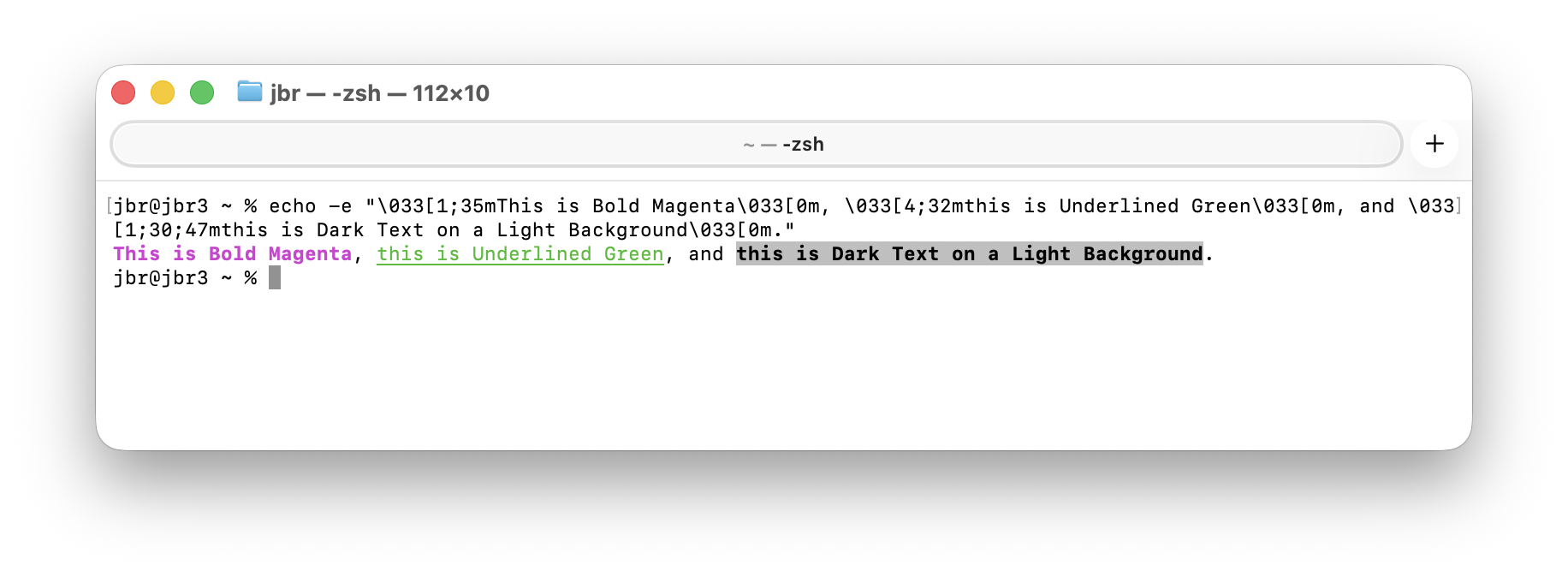
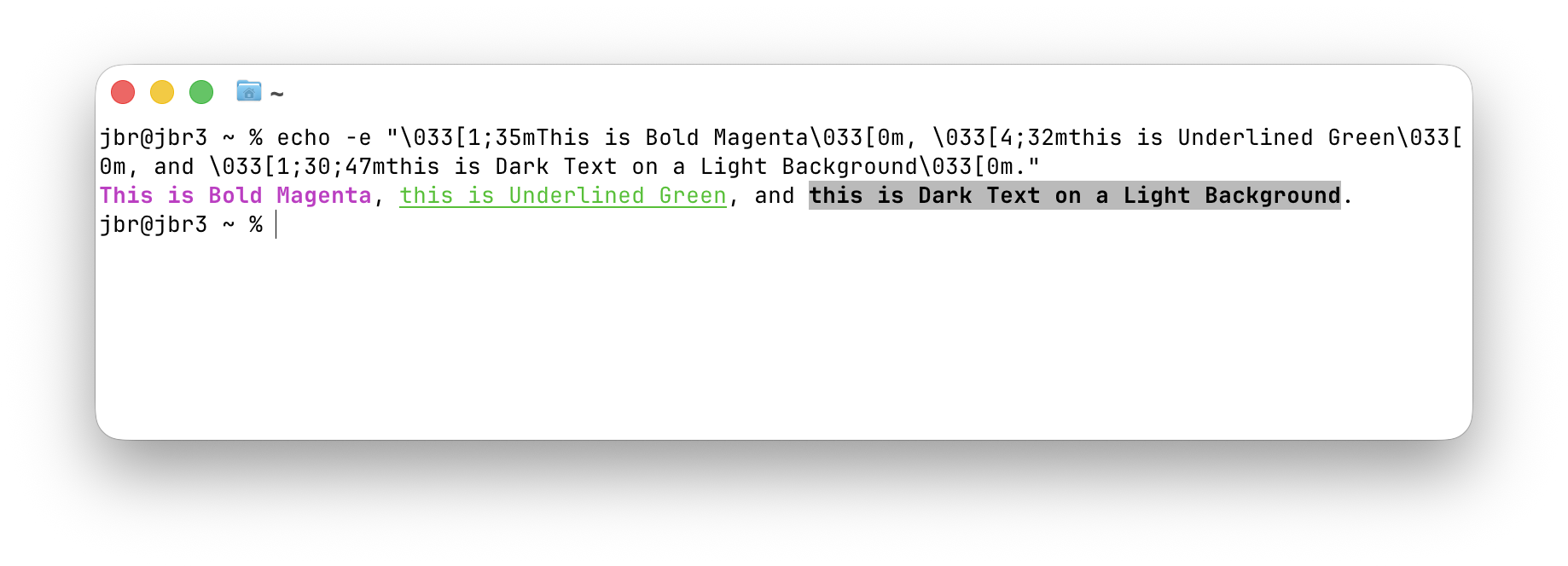
echo -e "\033[1;35mThis is Bold Magenta\033[0m, \033[4;32mthis is Underlined Green\033[0m, and \033[1;30;47mthis is Dark Text on a Light Background\033[0m."
How this works?
\033[initiates the formatting sequence.1;35msets Bold (1) and Magenta text (35).4;32msets Underline (4) and Green text (32).\033[0mis essential—it resets the formatting back to default so your terminal prompt doesn’t remain colored.
Both macOS Terminal.app and Ghostty render this command with full color and style:
Terminal.app
Ghostty
Step 2: The Source-Target Clipboard Contract
When you select text and hit Cmd + C, your terminal app doesn’t just copy plain characters. Instead, terminal emulators choose one specific rich-text payload to bundle alongside raw plain text:
-
Terminal.app writes RTF (
public.rtf) + Plain Text. -
Ghostty writes HTML (
public.html) + Plain Text.
Which app you paste into (when you hit Cmd + V) determines which payload gets read:
Scenario A: Pasting into Google Docs (Web-Based)
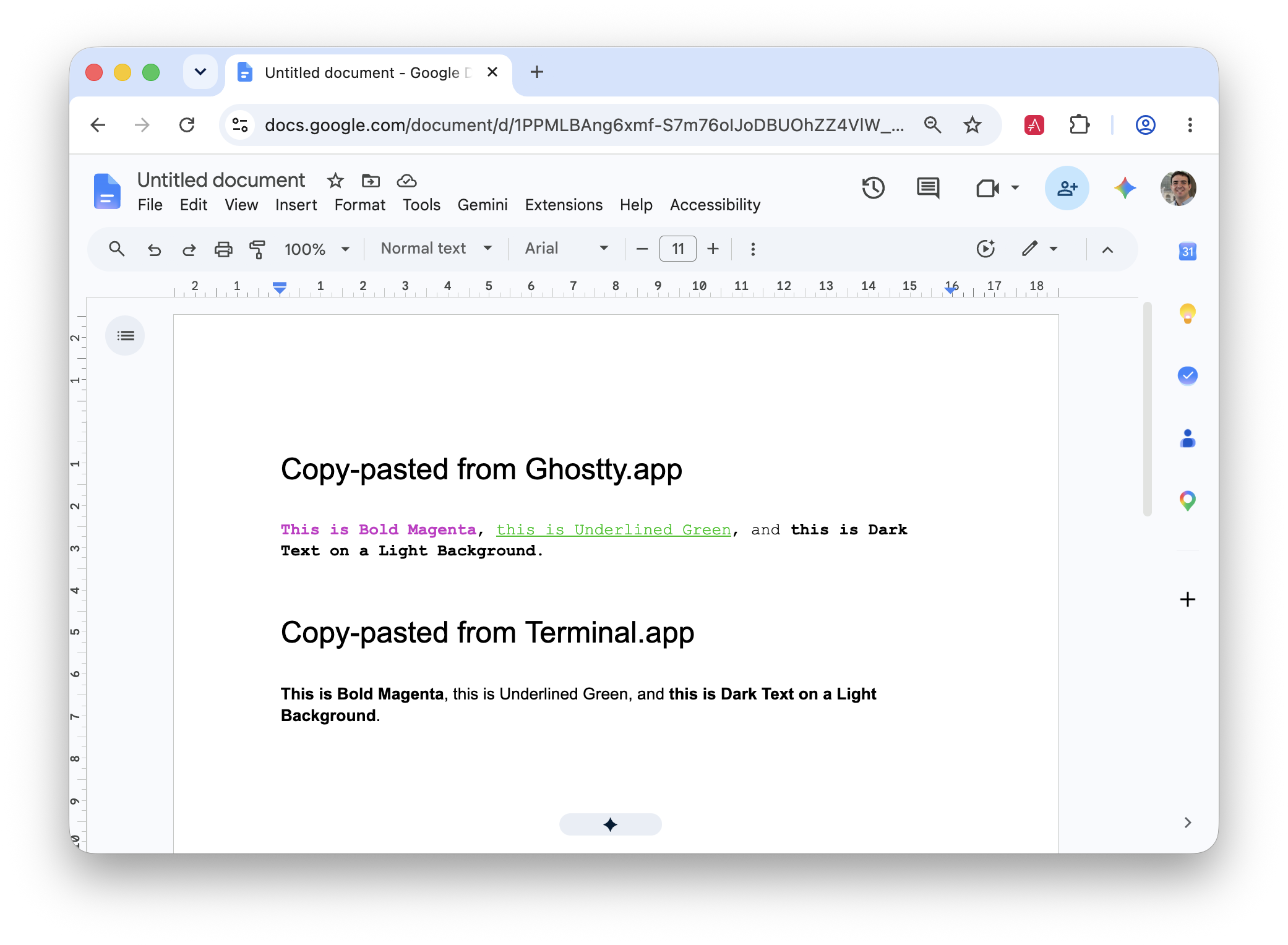
Google Docs runs inside a web browser and explicitly requests HTML from the system clipboard when pasting formatted text.
-
From Ghostty: The clipboard contains
public.html. Google Docs reads it directly, preserving all colored escape sequences as styled HTML. -
From Terminal.app: The clipboard has no HTML payload (only RTF). Google Docs cannot use the RTF payload over the web clipboard API, so it falls back to raw plain text, stripping all colors.
Scenario B: Pasting into TextEdit (Native macOS)
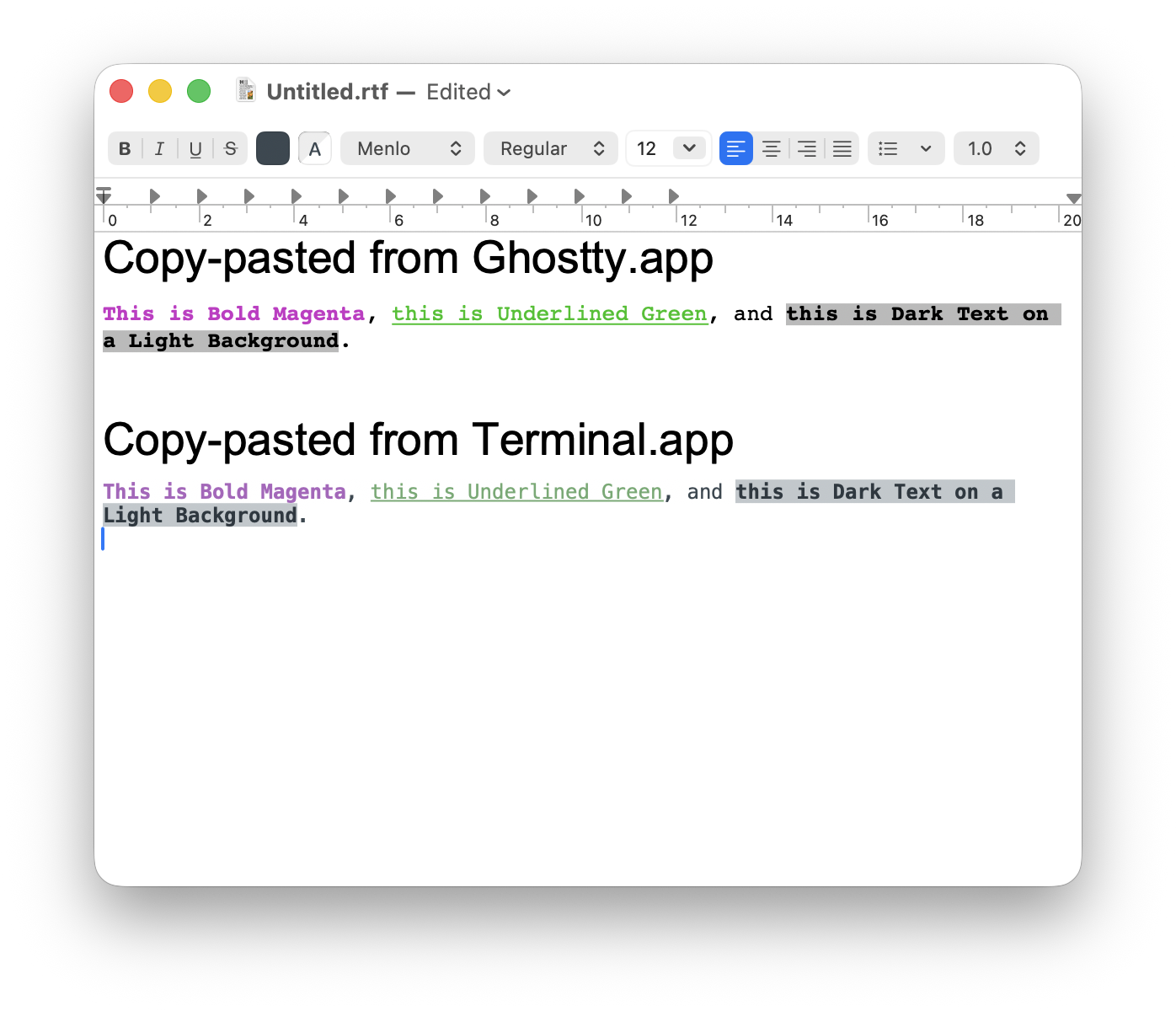
Apple’s TextEdit is a desktop app built on macOS native APIs. It understands both HTML and RTF natively.
-
From Ghostty: TextEdit reads the
public.htmlpayload and renders the styled text. -
From Terminal.app: TextEdit reads the
public.rtfpayload and renders the styled text just as cleanly!
How to Verify Your Own Clipboard
You don’t have to guess what your terminal is writing. Run this built-in macOS command right after copying text:
osascript -e 'get (clipboard info)'
You’ll see «class RTF » listed when copying from Terminal.app, and «class HTML» when copying from Ghostty.
Key Takeaway
Your terminal isn’t just a text display—it dictates what formatting data reaches your clipboard. If you frequently paste styled terminal output or code logs into rich text tools:
- Use modern terminals like Ghostty that write HTML directly to the clipboard.
- Remember that web-based apps (like Google Docs) specifically look for HTML data on the clipboard, while desktop apps (like TextEdit) often prioritise RTF.
✨ This article was drafted with the assistance of Gemini and has been thoroughly reviewed, edited, and enriched by me to ensure accuracy and originality.